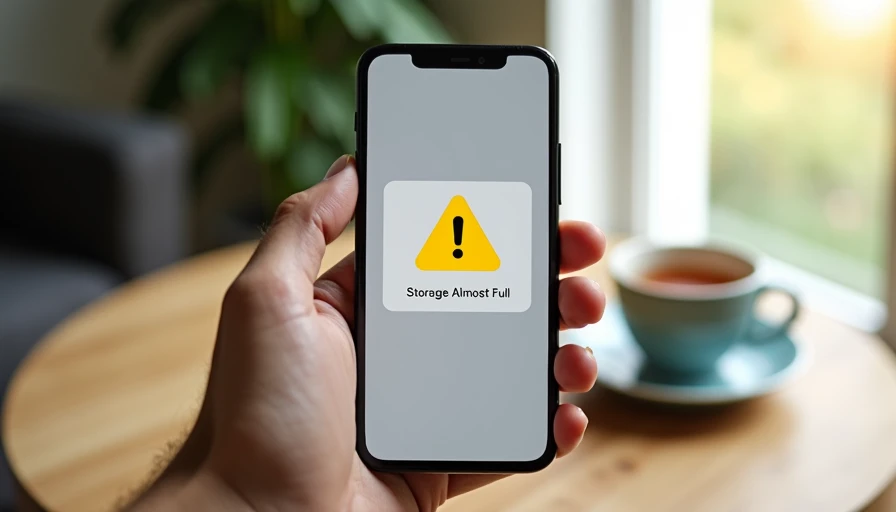
Last Easter, while helping my folks unload the car after a weekend at our cabin up north, my mom's phone flashed a yellow triangle and "Storage Almost Full." She handed it to me without a word. Twenty quiet minutes later, we had cleared twelve gigabytes of accidental duplicate screenshots. That is the same gentle cleanup I want to walk you through, because smartphone basics for seniors include knowing what to do when the phone politely announces it has run out of room. Let's make the next click the easy one.
The warning is not an emergency. It is the phone asking for a small spring cleaning. We will do it together, in the calm order I use with my own parents and the older neighbors I help through a small workshop series in Minneapolis.
What "Storage Full" Actually Means
Think of your phone like a small closet with drawers for photos, videos, apps, messages, and notes. When it is full, you cannot take a new photo, install an app update, or download a file. The phone tells you with messages like "Storage Almost Full" or "iPhone Storage Full."
The biggest space users are photos and videos — a minute of video can take more space than a thousand text messages. The second biggest are apps you rarely open. The third are messages with photos and attachments. If you have offered Android phone help for older adults in your family, you know this warning is one of the most common calls you will get.
Item type | Roughly how much space each one uses |
|---|---|
One text message | A tiny sliver — thousands can fit in a single megabyte |
One photo from the camera | 2 to 5 megabytes |
One short video (30 seconds) | 40 to 80 megabytes |
One app you never open | 50 to 500 megabytes, depending on the app |
One downloaded movie | 1 to 4 gigabytes |
If someone is rushing you to fix this, that is a reason to slow down. Real cleanups take fifteen minutes, not fifteen seconds.
The Calm, Step-by-Step Cleanup Order
There is a right order to clean a phone, just like cleaning a kitchen. Skip a step and you can make a mess. These four steps are the calm backbone of smartphone basics for seniors when the closet gets too full.
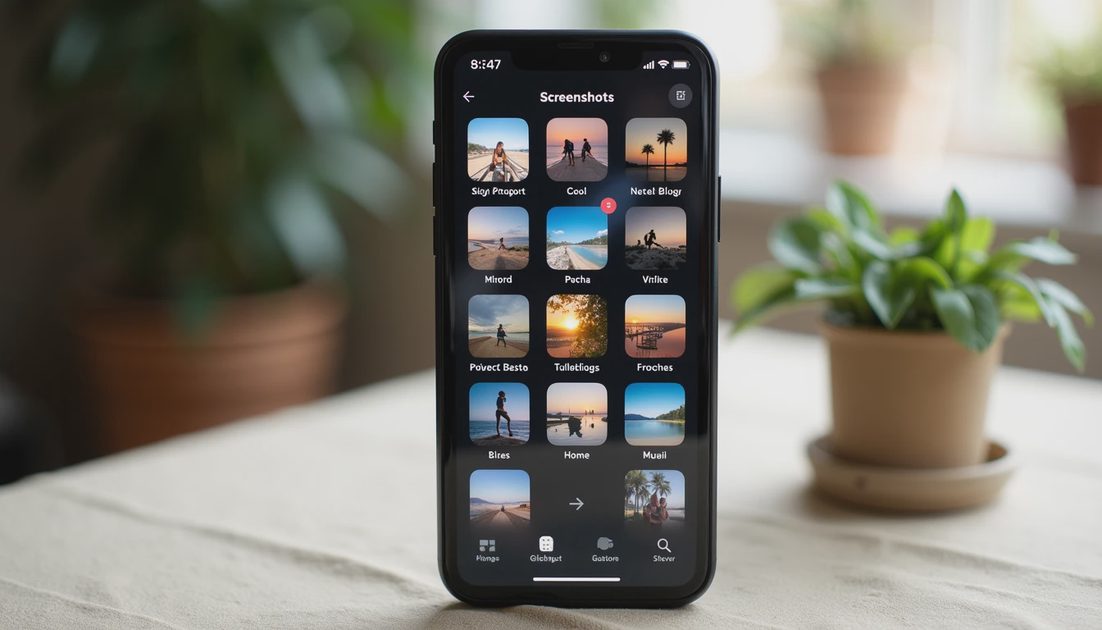
Step 1: delete duplicate screenshots. Screenshots are the surprise space hog. On iPhone, open Photos, tap Albums, then Screenshots under Media Types. On Android, search for "Screenshot." Tap the ones you do not need, tap the trash can, and confirm. The list should shrink.
Step 2: review your largest videos. A long video is usually the biggest space hog. Open Photos or Gallery and find the largest files. If you have shared it with the family, it is safe to delete.
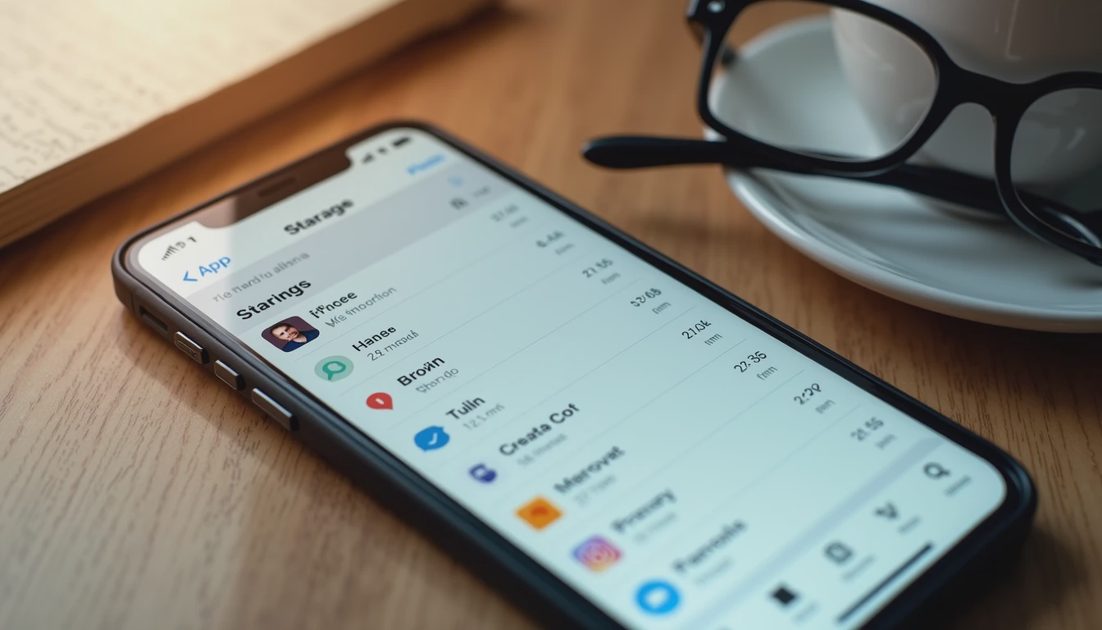
Step 3: remove apps you have not opened in six months. On iPhone, open Settings, then General, then iPhone Storage; the phone lists apps by size and last-used date. On Android, open Settings, then Apps, and sort by size. Tap the app, then Delete App or Uninstall.
Step 4: clear the caches of the apps you keep. A "cache" is a small file folder the app uses to remember things — like the last page you read. Clearing the cache is safe; clearing the app's data can erase logins.
You are not going to break the phone by looking at this screen. If a step does not match what you see, stop and ask a helper.
Offloading Photos to the Cloud or a Computer
Once the quick wins are out of the way, give your photos a second home — somewhere other than the phone. Two good options: the cloud, or a laptop.
Option A: cloud backup. On iPhone, open Settings → your name → iCloud → Photos → Sync This iPhone, then turn on Optimize iPhone Storage to keep thumbnails on the phone and full-size files in the cloud. On Android, open the Google Photos app, tap your profile, then Photos Settings → Backup. Photos upload on Wi-Fi.
Option B: move to a computer. Plug the phone into a laptop. On Windows, open File Explorer and look under "This PC." On a Mac, open Image Capture or Photos. Drag the photos to the laptop, then delete them from the phone. This is the way my dad prefers.
Clearing App Cache Without Losing Important Things
This is the step where beginners get nervous, so we will go slowly.
The cache is the temporary file folder the app keeps so it can open faster next time — clearing it is like shaking out a doormat. The app data includes your logins and saved preferences. Clearing data is like emptying the closet; you will have to log in again.
So: clear the cache freely. Be cautious with clearing data.
On iPhone, there is no manual "clear cache" button for most apps. The simplest move is to offload the app (which keeps its documents but removes the program itself) and reinstall it: Settings → General → iPhone Storage → the app → Offload App.
On Android, open Settings → Apps → the app → Storage → Clear Cache. If you also see Clear Data, leave it alone.
What you should see: the app's storage line gets smaller; the app loads a little slower the first time.
What NOT to Delete
Some things look like clutter but are quietly important. Do not delete these unless a helper has told you to.
The Phone, Messages, Contacts, Camera, Photos, and Settings apps. These came with the phone and on most phones cannot be deleted at all.
Anything labeled "System" or with a tiny gear or shield icon. Those are part of how the phone runs.
Backups in the cloud. A small message saying "iCloud Backup" or "Google Backup" is not clutter — it is your safety net.
Important message threads. If a conversation contains a confirmation number, a doctor's address, or a photo of a document, save it before deleting.
When in doubt, leave it. The cost of one extra app is a sliver of space; the cost of deleting the wrong thing is a whole afternoon of phone anxiety. Let's make the next click the easy one — and the easy click is often the one you do not make.
When to Ask for Help Instead of Guessing
There are two moments when it is wiser to stop than to keep clicking.
The first is when the warning says the phone cannot take new photos — a hard stop. Ask a helper to clear space with you, in person or on a video call. Evan has walked my father through this twice; ten minutes of gentle cleanup was all it took.
The second is when cleanup prompts ask for your Apple ID, Google account, or password. Those prompts are not part of the cleanup — they are a chance for a scammer to trick you with a fake screen. If anything asks for your password during cleanup, stop. Real Apple and Google prompts never appear in the middle of clearing photos.
If you would rather not do this alone, you have permission — bring the phone to your local library, your phone carrier's store, or a trusted grandchild. There is no award for doing it yourself; the award is having a phone that works again — and that, more than any single setting, is what smartphone basics for seniors are really about.