

The question I answered most often during eleven years as a patient-portal trainer was never about passwords. It was "Did my doctor write back yet?" People would sign in, then lose the thread somewhere between sending a question and reading the answer. Learning how to use a patient portal is really a matter of knowing where replies land and where they wait for you. My parents live two hours away, and this is the skill that keeps me from driving up the highway for something a message could have settled.
This guide covers what a portal is, how to get in, the four sections you will use, how portal messages differ from email, and a simple way to track everything you send and receive.
What a Portal Is, and What It Is Not
A patient portal is a secure website or app that your clinic or hospital system runs. It is tied to your medical record and your name, not to a general account you create on your own. It helps to name what it is not.
It is not email. You can reply inside it, but it lives in your chart and is handled by clinic staff, not by a mail server.
It is not a place for emergencies. A message may sit unread until the next business day. For chest pain, trouble breathing, or heavy bleeding, call 911.
It is not a replacement for the telephone when something is urgent or you need an answer within the hour.
It is not the pharmacy's app, though refill requests may cross between them.
It is not one single national system. Each health system chooses its own, and if you see two clinics, you may have two portals.
That last point surprises people: the portal my parents use in their town is not the same one my clinic uses in Minneapolis. Ask the front desk for the exact name of theirs.
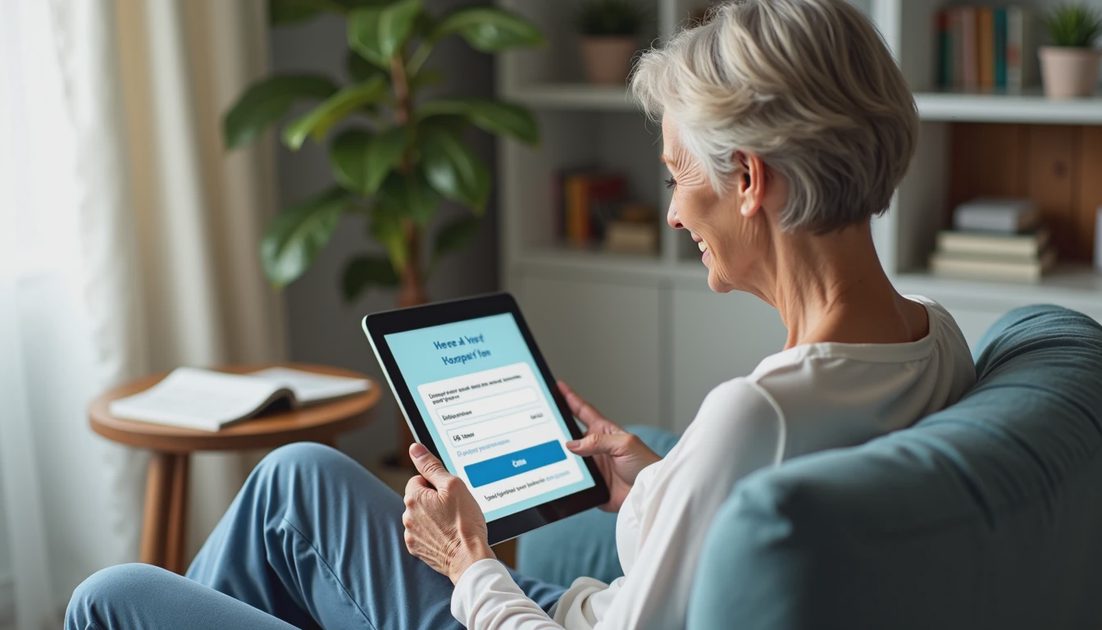
Getting In: The Clinic's App or a Web Browser
There are two doors into the same house, and either is fine.
The first door is the clinic's website in a browser. Type the address from a card or letter the clinic gave you, or use the link printed on your after-visit summary. Typing it yourself avoids search results that look similar but are not the clinic.
The second door is the clinic's official app, from Apple's App Store or Google Play. App stores contain look-alike apps, so check the developer name under the app title; it should be the hospital system itself. If you are not sure, call the clinic and ask, "What is the exact name of your app?" Reception staff answer that question all day and are glad you asked.
Signing in usually takes two steps: a username and password, then a short code sent to your phone or email. That extra step is called two-step verification; it exists so a stolen password alone is not enough to open your chart. Your checkpoint: once you are in, you should see your own name and your clinic's name on the screen. Stop here if the screen does not look like this, and ask for help instead of typing your password again.

The Four Sections You Will Actually Use
Portals differ in color and layout, but the working parts are the same four. This is also where how to use a patient portal stops feeling abstract, because everything you need sits in one of these four places.
Section | What it is for | What you should see |
|---|---|---|
Messages | Non-urgent questions for your care team, such as a dosage question | A list with dates, and a New Message or Compose button |
Appointments | Upcoming visits, scheduling requests, cancellations | The date, time, provider name, and location of each visit |
Test Results | Lab work and imaging reports, often released a few days after the visit | A list of results with dates; a note explaining when a clinician will review them |
Medications | Your current medication list and refill requests | Your medicine names and doses, plus a Request Refill link |
One caution about test results. Many systems release results as soon as the lab finishes, before your clinician has read them. A number outside its usual range with no explanation is common and does not mean something is wrong. If a result worries you, message or call rather than spending the evening searching the internet.
How Portal Messages Differ From Email
Treating a portal message like a text to a friend leads to disappointment. Here is what to expect instead.
Messages are read during staffed hours, typically on business days, not around the clock.
A reply may take a couple of business days; the portal usually states the window.
Your message becomes part of your medical record. Keep it factual: what changed, when it started, what you have tried, and what you need.
Any member of your care team may read it, which usually helps, because the nurse who answers may solve it fastest.
Anything urgent belongs on the phone or, in an emergency, with 911.
Your checkpoint after sending: you should see your message in a Sent or Conversations list with a date and time next to it. If it is not there, it did not send; try again or call.
Keeping Track of Sent Messages and Replies
People lose track not from forgetfulness but because the portal is a second inbox living beside the first one. A small system fixes it, and it does not need to be digital. Families who ask about how to help parents with technology remotely need exactly this: one pad, one place to look.
When you send a message, write the date, who it went to, and the question in one line.
When a reply arrives, write one line summarizing the answer, and cross off the question.
If the reply asks you to do something, put that task on the same calendar you use for everything else — not a separate list.
Bring the pad to appointments; clinicians can read a page of history faster than you can recall it under pressure.
Mine is a lined pad in a kitchen drawer, updated every Sunday while something is in the oven. I also keep a handwritten list beside my laptop titled "things Mom may ask about," and half the entries start with the words "did they answer." My mother now keeps the same pad on her end. Two pieces of paper, two hours of highway between us, and far fewer calls that begin with "I am not sure if I already asked you this."
When to Call the Clinic Instead
The portal is the right tool for routine, non-urgent questions. The telephone is the right tool for everything else, and no one minds.
Call 911 for chest pain, difficulty breathing, signs of a stroke, or heavy bleeding. Call the clinic's nurse line for a fever after surgery, a reaction to a new medication, or anything you were told to report right away. Call the billing office, not the portal, when the question is about a statement, because billing often lives in a separate system. And call if a message has gone unanswered for several business days, if you cannot get into your account, or if anyone on the phone pressures you for payment or personal details. If someone is rushing you, that is a reason to slow down.
You will not annoy your clinic by asking which button to press. Staff at your own clinic or pharmacy can walk you through their specific portal, screen by screen, and that tour is worth more than any general guide, including this one. Start with one message you have been meaning to send. Let's make the next click the easy one.