When my mom called on a Sunday afternoon to say her iPad had "no internet," she was holding her handwritten list and a small notebook of passwords. The list included: "Wi-Fi name — apple-pie-5G" and "Wi-Fi password — see notebook." That notebook has saved her three times this year. This is the guide I wish I had handed her the day she got her first tablet.
Home Wi-Fi is the invisible radio signal that lets your phone, tablet, laptop, smart speaker, and TV talk to the internet without a cord. The signal comes from a router. The router gets its internet from a modem, connected to a cable in the wall. The two are sometimes one box. If someone is rushing you to buy a new box, that is a reason to slow down and read this beginner's guide to how to set up home Wi-Fi for beginners before spending anything.
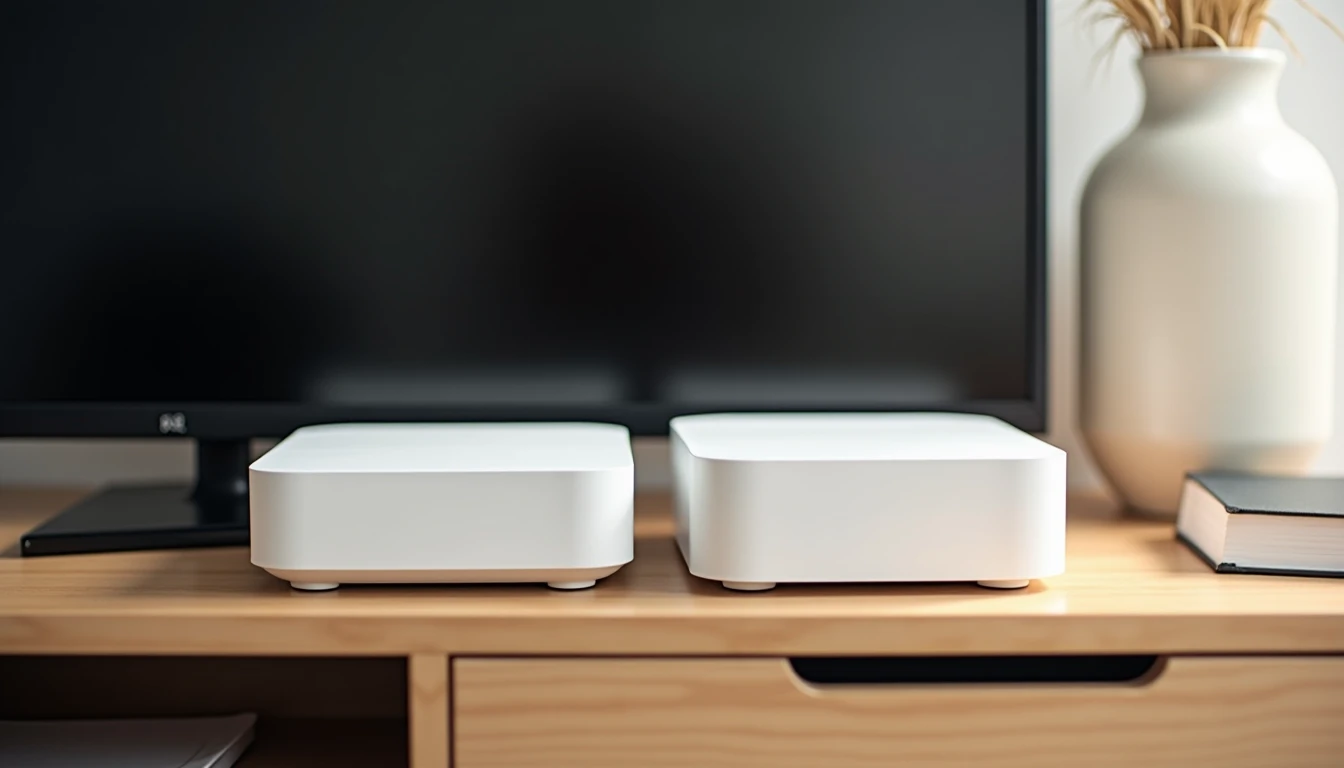
The two boxes: modem and router
A modem talks to the outside world. It connects to the cable or phone line and converts that signal into something your devices can understand. A router takes that signal and broadcasts it as Wi-Fi inside your home.
Box | What it does | How to recognize it |
|---|---|---|
Modem | Connects your home to the internet provider | One cable going to the wall |
Router | Broadcasts Wi-Fi inside your home | Two or more antennas, or none |
Combo unit | Both jobs in one box | Common from internet providers |
If your internet came from Comcast, Xfinity, Spectrum, AT&T, or a regional fiber company, the box they gave you is often a combo. That is fine. One box, two jobs.
If Wi-Fi stops working, restart the router first. If the whole internet is gone, restart the modem too.
Network name (SSID) and password — what they really are
When you open the Wi-Fi settings on a phone, you see a list of names. Each name is a network name — what the industry calls an SSID, which is just a fancy way of saying "the name your router broadcasts." Your home network is one of those names.
You join by typing the password. You should know both as if they were your own phone number. Write them on the same handwritten list your mom already has. The network name and the password are both printed on a sticker on the bottom of the router. The 2.4 GHz and 5 GHz bands — sometimes shown as two networks ending in "-2.4G" or "-5G" — both work for most devices; either band is fine to join.
The sticker does not change when you restart the router. The password does not change unless you change it on purpose.
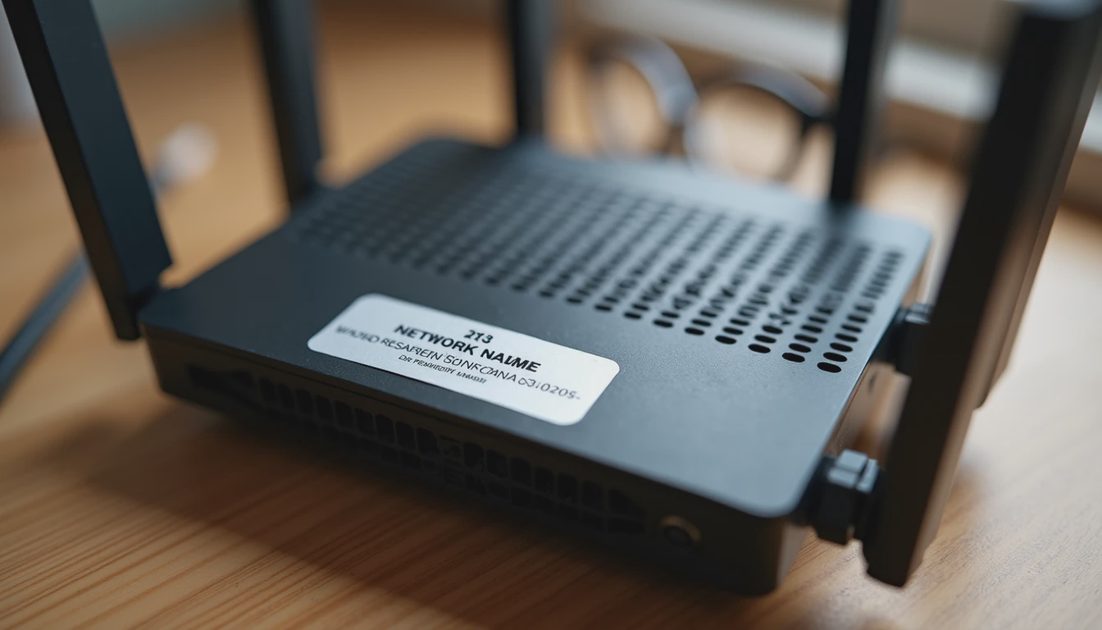
If you cannot find the sticker, your internet provider can read the network name and password to you over the phone. That call is part of what you pay them for. You are not bothering them.
Where to put the router
A router is a small radio. Where you put it changes how far the signal reaches. Three rules: high, central, and out in the open. Not in a closed cabinet. Not in the basement. Not behind the television.
Where | Signal | Why |
|---|---|---|
High shelf, central room | Strong | Radio waves travel down and out from the center |
Closed cabinet | Weak | Wood and doors weaken the signal |
Next to a microwave | Weaker | Microwaves and Wi-Fi share a radio band |
Basement | Weak upstairs | Concrete and floors block radio waves |
In a single-story home, one router near the center usually covers everything. In a two-story home or a long ranch, you may need a second router or a mesh system — a kit of small boxes that act as one network. Mesh kits are common and not difficult to set up. They are not urgent. If the existing Wi-Fi reaches the rooms you use it in, the existing Wi-Fi is fine.
The 60-second restart routine
The most common Wi-Fi problem is also the easiest to fix. If Wi-Fi stops on one device, restart that device first. If Wi-Fi stops on all devices, restart the router. If the whole internet is gone, restart the modem too. For anyone working through how to set up home Wi-Fi for beginners, this is the first trick to memorize.
The routine:
Unplug the router from power.
Wait 60 seconds. Do not skip this — it needs time to fully reset.
Plug it back in.
Wait 2 minutes for the lights to settle.
Try the Wi-Fi on your phone.
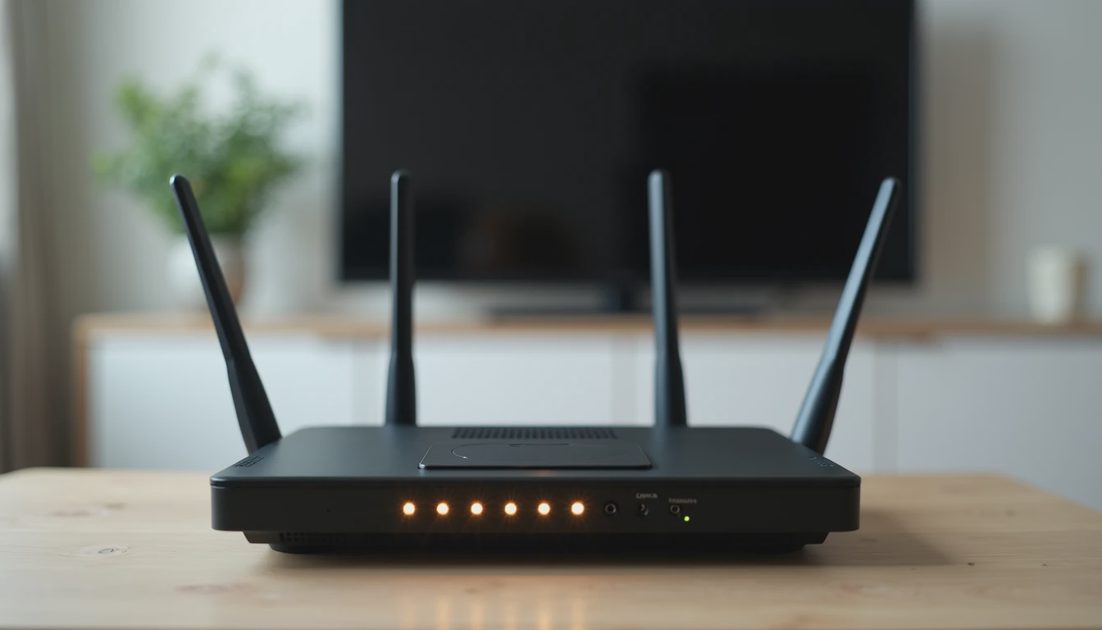
A solid green or white light usually means "ready." A blinking light means "still starting up." A red light, or no light at all, usually means "call the provider."
This is the routine that has solved about four out of five Wi-Fi problems in my own family's homes, from Evan streaming a Saturday game to Lila doing homework on her Chromebook to my mom loading her Sunday recipes.
Home Wi-Fi vs mobile data — and what each costs
Home Wi-Fi is the signal from your router. It does not count against your phone plan. Mobile data is the signal from your phone company — usually shown as 4G, 5G, or LTE — and it does count. Same apps work on both. The difference is where the signal comes from and what it costs.
Type | Comes from | Counts against phone plan? |
|---|---|---|
Home Wi-Fi | Your router | No |
Mobile data | Cell tower outside | Yes |
Public Wi-Fi | Coffee shop, library | No, but be cautious |
When you are home, connect to your Wi-Fi and leave it on. When you leave, your phone switches to mobile data on its own. Public Wi-Fi is fine for reading the news. It is not a safe place to log in to banking or type credit card numbers. If a public Wi-Fi page asks you to log in or watch an ad, close it and use your home Wi-Fi instead.
When to call the internet provider
Some problems are yours to fix. Some are your provider's job. For many readers learning how to set up home Wi-Fi for beginners, this is the line that matters most.
Yours to fix | Provider's job |
|---|---|
Wi-Fi on one device but not another | No internet on any device after restart |
Router was unplugged, then plugged back in | Cable outside the home looks damaged |
Password was forgotten | Modem lights are red or all dark |
Device is too far from the router | Outage in your neighborhood |
If the lights are wrong, the line is damaged, or the whole neighborhood is out, call your provider. Be ready to read the serial number on the bottom of the modem. The technician can walk you through the 60-second restart over the phone.
If someone calls you claiming to be from your provider and asks for remote access to your computer, hang up. Real providers do not do that. Hang up, then call the number on the bill yourself. "If someone is rushing you, that is a reason to slow down."
One more thing
Wi-Fi is supposed to be invisible. When it stops, the fix is almost always one of three things: restart the device, restart the router, or call the provider. Save those three options on your mom list. Save the provider's phone number next to the password notebook. You will use them.
Let's make the next click the easy one.