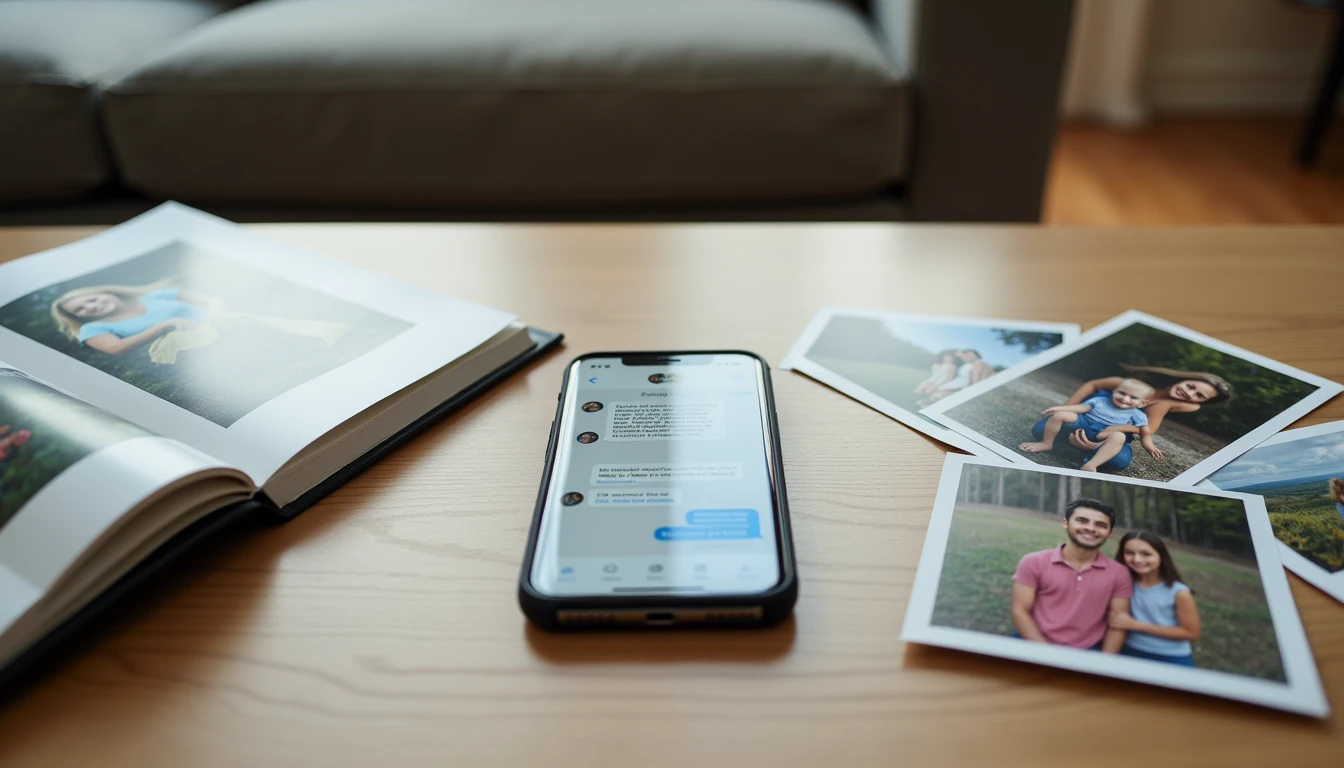
A few weeks ago, my twelve-year-old Lila sent me a photo from her school trip to the science museum in Saint Paul. It looked, to my tired eyes after a long Tuesday, exactly like a text message. Twenty minutes later, my father-in-law called from his house two hours up the road, confused because he had "tried to save a text" and now his photos looked different. He had, in fact, saved a photo inside a text — a small but important distinction. Both moments taught me the same lesson: a clear guide to how to use an iPhone for beginners (and the matching Android guide) has to start with the difference between a text, a photo in a message, and an attachment. Let's make the next click the easy one.
The good news is that the three things are related, not hard. Once you see how they fit together, you will handle messages the way you handle mail — quickly and without worry.
Why Three Words Mean Three Different Things
A "text message" travels through your cellular plan. A "photo inside a message" is a picture sent alongside text, inside the same conversation. An "attachment" is any extra file — a photo, a PDF, a document — usually sent through a messaging app that uses data or Wi-Fi (iMessage, WhatsApp, Facebook Messenger), not your regular text plan.
Here is the short version. Think of three boxes on a shelf:
A text is a plain written message, no picture or file.
A photo in a message is a picture sent alongside text, inside the same conversation.
An attachment is any extra file sent in a messaging app that uses data or Wi-Fi, not your regular text plan.
That distinction matters because each one costs differently, lives in a different place, and is saved in a different way.

A Plain-English Picture of Text, Photo, and Attachment
When you open your Messages app, you see a list of conversations. Each is a row showing a name (or phone number) and a small preview of the most recent message. Tap the row once to open it.
Inside the conversation:
A text shows up as a small gray or blue bubble with words only. You can read it and reply to it.
A photo in a message shows up as a small picture inside the bubble. Tap once to view it full-screen, tap again to close, press and hold to save it.
An attachment in iMessage, WhatsApp, or Facebook Messenger shows up as a small tile with a file name and an icon — like a tiny page with a corner folded. Tap once to open it; a small download arrow may appear first.
On iPhone and Android, the Messages app handles texts and photos through your cell plan, while iMessage (iPhone-to-iPhone), WhatsApp, and similar apps use the internet. That is why some bubbles are blue and others are green — color is the phone's quiet way of telling you which service is in use.
If someone is rushing you, that is a reason to slow down. Especially when a message includes money, account numbers, or "click this link now" urgency — read twice, then a third time.

How to View, Save, and Share Each One
The buttons are a little different on iPhone and Android, but the logic is the same. If you need Android phone help for older adults, the steps below work on Samsung and Pixel phones with nearly identical menu names.
To view a photo in a message. Tap the picture once. It opens full-screen. Pinch with two fingers to zoom in, and tap the X or the back arrow to return. What you should see: the photo fills the screen, and you can scroll side to side if there are several pictures.
To save a photo to your phone's Photos or Gallery. On iPhone, press and hold the picture in the conversation until a menu appears, then tap Save. On Android, press and hold, then tap Save to Gallery or Save Image. The photo now lives in your Photos app even after you delete the message. This is the step that confused my father-in-law — he thought saving the message saved the photo. It does not.
To share a photo with someone else. Open the photo full-screen, tap the share icon (a square with an arrow), then tap the name of the person you want to send it to.
Type of item | Where it lives after you receive it | How to keep it forever |
|---|---|---|
Plain text | Inside the Messages conversation | Take a screenshot, or copy and paste into Notes |
Photo in a message | Inside the conversation AND (if saved) in your Photos/Gallery | Press and hold, then choose Save |
Attachment (PDF, document) | Inside the conversation AND (if saved) in your Files or Downloads folder | Tap the file, then tap share and choose Save to Files |
You are not going to break the phone by looking at this screen. Saving the same photo twice does not harm anything — it just takes up a small amount of space.
Why Some Messages Cost Data and Others Don't
This is the second most common question I get from older learners around Minneapolis, right after "Why are some bubbles blue and some green?" The answer is short.
Plain SMS texts (the green bubbles on iPhone, and most texts on Android) travel through your cellular plan. If your plan includes unlimited texting, they are free. MMS texts, which carry photos through your cell plan, sometimes count against your data allowance or cost a small extra fee.
Messages sent through iMessage, WhatsApp, Signal, or Facebook Messenger travel through the internet — your home Wi-Fi or your phone's mobile data. They do not use your text plan, and they are usually the cheapest way to send photos.
This is why I encourage everyone in my family to use a data-based app for group conversations with the grandchildren. Lila sends me school photos through iMessage, Evan sends me recipes from his phone, and Miles sends me little drawings — all without ever touching our text plan.
If you are not sure which kind of message you are reading, look at the bubble color (blue usually means internet, green usually means cellular) or look at the app it came from.
When Storage Starts to Feel Tight
Photos and attachments quietly add up, which is why phones sometimes show a "Storage Almost Full" warning. We cover that warning in our guide to smartphone basics for seniors; here are four small habits that keep it from sneaking up on you.
Save only the photos you actually want to keep. Close the conversation if you only wanted to see the picture once.
Delete the messages you no longer need. In the Messages app, swipe left on a conversation and tap Delete. On Android, long-press a conversation, then tap the trash can.
Back up the photos you do save. Turn on iCloud Photos (iPhone) or Google Photos backup (Android) so they live in the cloud and do not fill up your phone.
Check your largest conversations once a month. Settings → General → iPhone Storage (on iPhone), or Settings → Apps on Android shows you which conversations are taking the most space.
If something looks confusing, do not delete randomly. Stop, take a breath, and ask a helper. A wrong tap can usually be undone; a wrong bulk delete cannot.