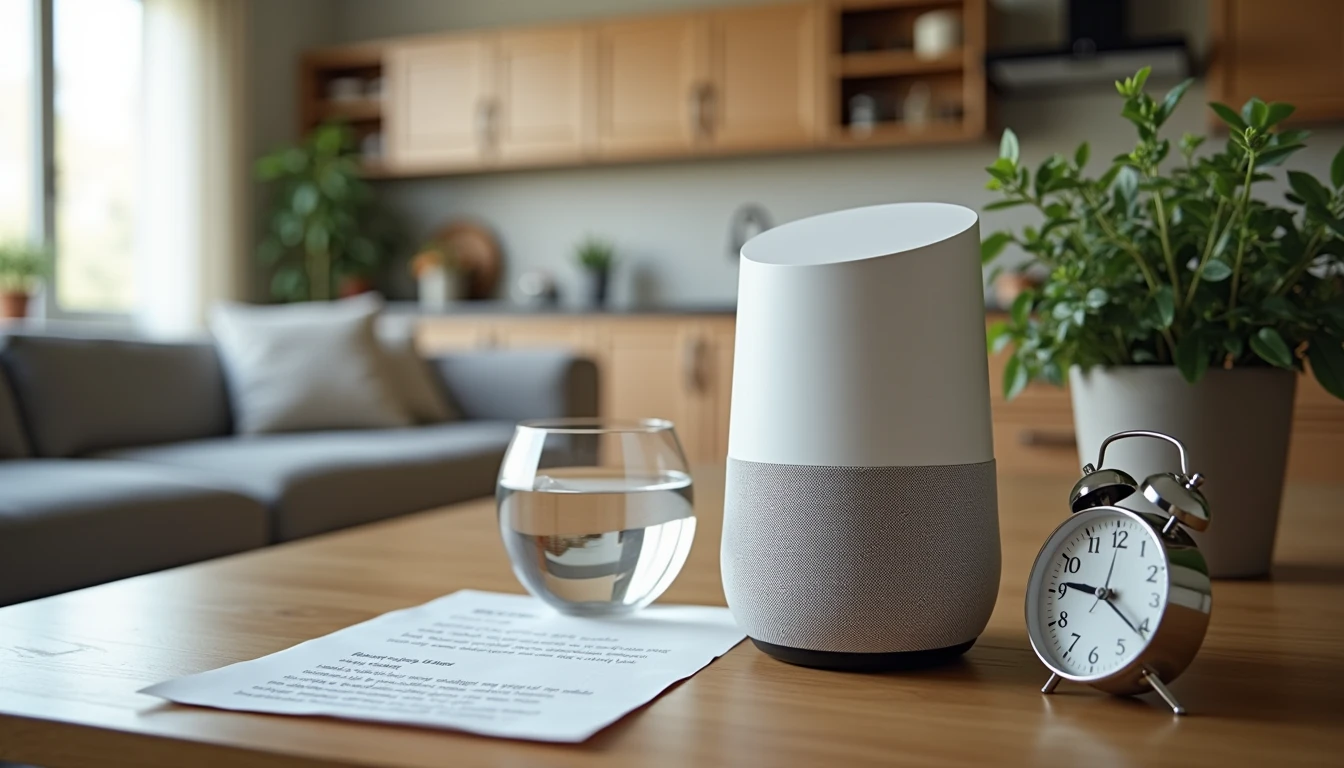
If a small fabric cylinder on your kitchen counter can answer the weather, set a timer for the cookies in the oven, and call your daughter in Minneapolis — and you did not have to touch it — that is a smart speaker. Smart speakers are some of the friendliest smart home devices for older adults, because the main thing you do with one is talk to it. There is no keyboard, no password for every app, no settings menu to learn before you start.
This guide explains what a smart speaker actually does, what it hears (and what it does not), and how to set one up so it feels safe from day one. The two main examples are Amazon's Echo family (which answers to "Alexa") and Google's Nest family (which answers to "Hey Google"). Other brands exist; the ideas below apply to all of them.
What a smart speaker actually is
A smart speaker is a small speaker plus a microphone plus a small computer, all in one box or cylinder. The speaker plays music, podcasts, and answers. The microphone listens for a wake word — a chosen word or phrase, usually "Alexa" or "Hey Google" — that tells the speaker "the next thing said is for you." You say the wake word, then you say your question or command. The speaker answers in its own voice.
That is the whole idea. Smart speakers work well as smart home devices for older adults because there is nothing to learn before you use them. Say "Alexa, what time is it?" and the speaker answers.
What "always listening" really means
A smart speaker is always listening for its wake word. Here is what that means, in plain English. The microphone is on. A small chip inside the speaker listens only for the wake word. When the speaker hears the wake word, it begins recording your next sentence, sends that recording to a remote computer over the internet, gets an answer back, and plays the answer. When you are not speaking to it, the speaker is not recording and is not sending audio anywhere.
What you should see:
A light ring or bar at the top of the speaker that lights up when the speaker is listening or thinking
A brief pulse during the wake word
No light at all when the speaker is idle
If the light is on when you did not call the wake word, that is a reason to slow down. Unplug the speaker, then check the manual that came in the box.
The mute button — your privacy power switch
Every modern smart speaker has a physical mute button. On Echo devices it is on the top, marked with a circle-with-a-line-through-it symbol. On Nest devices it is on the back near the power cord. Pressing the mute button turns the microphone off. The light ring turns red to tell you the mic is off.
A muted speaker is, for practical purposes, a regular Bluetooth speaker. It will still play music if you press play on your phone. It will simply not respond to "Alexa" or "Hey Google" until you unmute it.
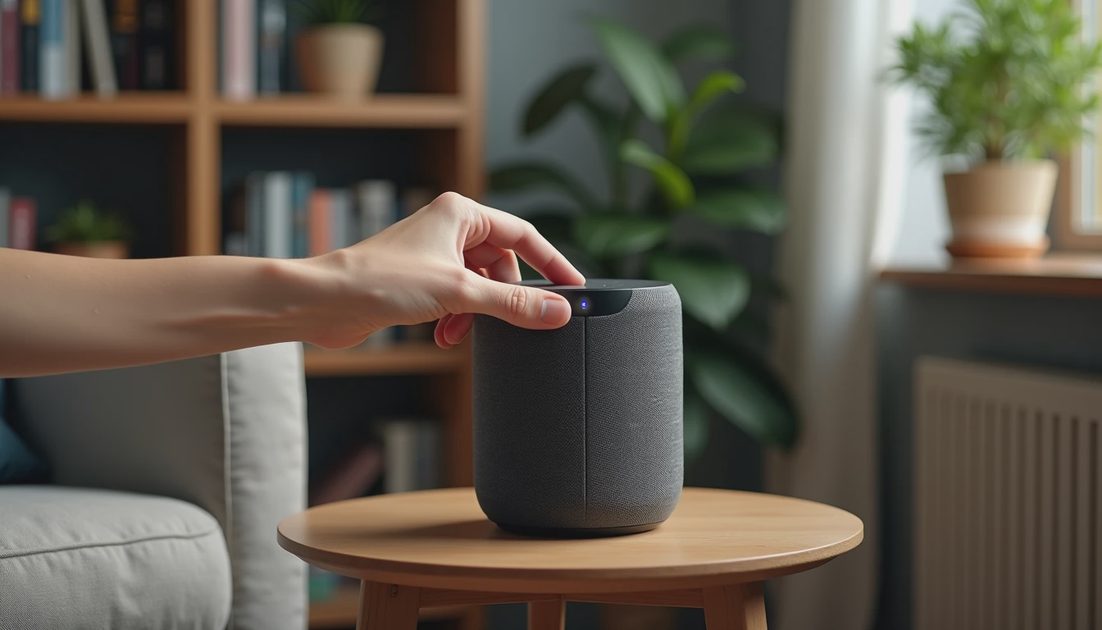
This is a useful feature for visitors, for private phone calls at the kitchen counter, or for anyone not yet sure they trust the device. Mute it. Try it for a week. If you like it muted, leave it muted. There is no rule that says you have to use the voice features.
Useful things to ask on day one
Here are five requests that work on every smart speaker in this category. Speak the wake word first, then say the request. Speak slowly; the speaker understands short, direct sentences much better than long, polite ones.
What you want | What to say |
|---|---|
A kitchen timer | "Set a timer for 12 minutes." |
Today's weather | "What's the weather today?" |
A reminder at a set time | "Remind me at 6 PM to take medication." |
A hands-free call | "Call [first name]." |
A quick fact | "How many tablespoons in a cup?" |
If the speaker does not understand you the first time, try again with slightly different words. "Set a timer for 12 minutes" works better than "could you please set a timer for about 12 minutes if you don't mind." Smart speakers are built for direct.
Honest privacy trade-offs and day-one settings
Smart speakers are useful, and they are also a microphone in your home. That is the trade-off, and it is honest to talk about it. The settings below are the small steps that make smart home devices for older adults feel safer from day one.
Setting | Where to find it | What it does |
|---|---|---|
Mute the mic | Top or back of the speaker | Turns off the microphone entirely |
Delete today's recordings | The brand's phone app | Removes recordings from the cloud |
Auto-delete after 3 or 18 months | Same app, privacy settings | Stops recordings from piling up |
Voice purchasing off | Same app, voice settings | Stops the speaker from buying things by voice |
Drop-In off | Same app, calling settings | Stops approved contacts from listening in |
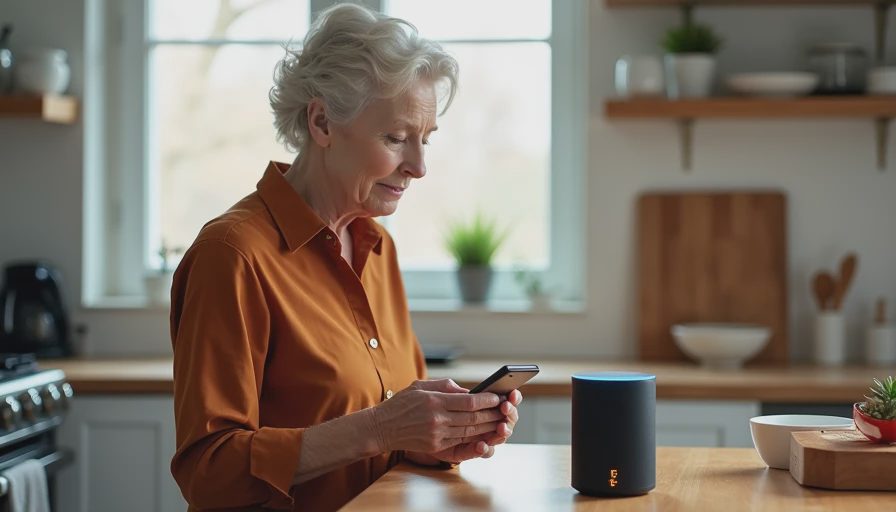
Two habits help more than any setting. Mute it when you have private conversations at the counter. Review the recording history every few weeks — most brand apps let you play back, delete, or set auto-delete. The history is yours to delete. If something feels off, that is also a reason to call the brand's support line; the number is on the box and on the back of the speaker.
When a smart speaker is not the right tool
A smart speaker is not the right tool for anyone who is uncomfortable with a microphone in the home, who has a hard time speaking loudly enough for the speaker to hear, or who lives where the internet drops out often. None of those are reasons to feel "behind." They are reasons to skip this category.
If a parent would rather tap a screen than speak, a tablet is a better fit. If a parent would rather push a single button to call one person, an emergency-call button or a simplified phone is a better fit. Pick what fits.
If someone is rushing you to set one up, that is a reason to slow down. Smart speakers are not urgent. The next click can wait until you have read the rest of this guide or the manual.
A note for the helper reading on behalf of a parent
If you are Evan, Lila, Miles, or anyone setting up a smart speaker for a parent — set the device up before you hand it over. Plug it in, connect it to Wi-Fi, set the wake word, change the day-one privacy settings in the app, and test the timer and the weather. Then write the wake word on a small index card and tape it next to the speaker. The parent does not need to download the app or sign in to use the speaker by voice.
If the parent is two hours away — the way mine are — you can still help. The brand apps let you add a second user, manage the device from your phone, and check the recording history remotely. Smart home devices for older adults are easier to manage as a family when one adult child is set up as the helper.
Take a week. Ask a neighbor with the same model how it has worked for them. Then choose.
Let's make the next click the easy one.