
Last fall I helped my mother-in-law — visiting from two hours down the road in central Minnesota — set up voicemail on the phone Evan and I gave her for her birthday. She had been missing calls from her sister for two weeks and was too proud to ask. Once she understood the difference between answering, declining, and sending a call to voicemail, she was back in touch by lunchtime. That afternoon, with a pan of cinnamon bread cooling on the counter, is exactly why I keep writing these guides. Most smartphone basics for seniors are not about apps or settings — they are about being able to talk to the people you love. Let's make the next click the easy one.
Below is the calm, step-by-step version. It works on both iPhone and Android — where they differ, I will tell you what to expect. This guide covers the phone-calls half of how to use an iPhone for beginners.
What Happens When Your Phone Rings
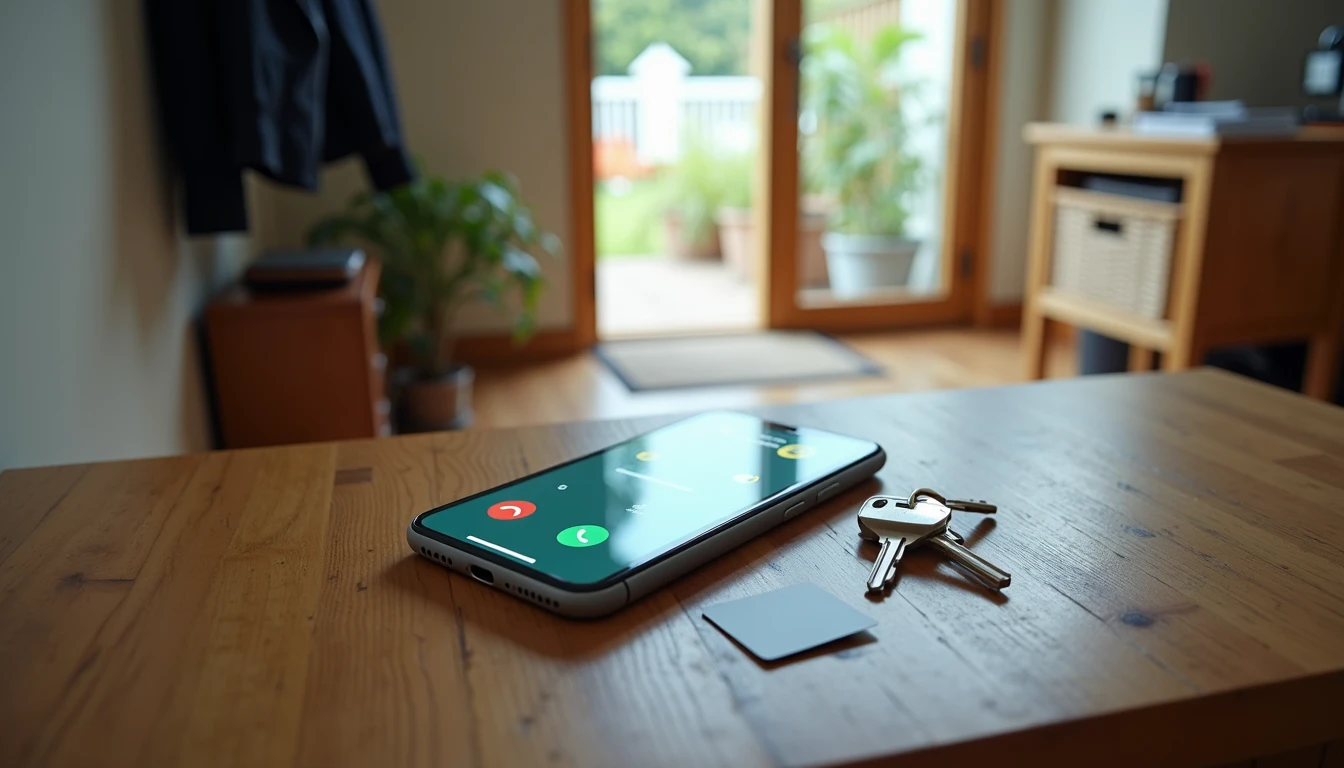
Before we touch any buttons, it helps to know what the phone is trying to tell you. When a call comes in, the screen lights up, the phone makes a sound (or vibrates), and you see the caller's name or number, a green icon, and a red icon.
On iPhone, the green icon means accept and the red icon means decline. To answer, slide the green icon to the right, or tap Accept. To send to voicemail, slide the red icon to the left, or tap Decline.
On Android (Samsung, Pixel, and most others), swipe up on the green icon to answer, and swipe down on the red icon to decline.
What you should see: a full-screen picture with the caller's name and two clearly labeled buttons. If you only see a tiny banner at the top, you are looking at a notification — tap it once to bring up the full answer screen.

Answering a Call You Want to Take
When you recognize the name — maybe your doctor's office or one of your grown children — go ahead and answer.
Step 1. Swipe or tap the green icon.
Step 2. Hold the phone to your ear, or press the speaker button (a small megaphone icon) to use speakerphone. Speakerphone helps if your hands shake or you want others in the room to hear. My dad uses it every Sunday to call his sister, and the whole kitchen joins in.
Step 3. When you are done, tap the red phone icon. The call ends.
What you should see: during the call, a small timer counts up in the middle of the screen. Call quality is usually clear when you hold the phone close to your ear. If the call drops, call back from Recents — the phone remembers the number.
If someone is rushing you, that is a reason to slow down. Real callers will understand if you need a moment to find your glasses.
Silencing or Declining a Call Politely
There will be times when a call comes in and you cannot talk. The phone gives you two options.
Option 1: silence the ringer but keep the call coming in. If you are in a meeting, in church, or just do not want noise right now, press the small switch on the left side (the Ring/Silent switch on iPhone) or the volume down button on Android. The ringer goes quiet, but the call is still coming in and the screen still lights up.
Option 2: send the call straight to voicemail. Swipe or tap the red Decline icon. The caller hears your voicemail greeting and can leave a message — that is what voicemail is for. On iPhone, tap Message and send a quick reply like "Can't talk now, will call back."
Situation | What to do |
|---|---|
You are busy but can talk in five minutes | Silence the ringer, then answer before the caller hangs up |
You truly cannot talk | Decline and let it go to voicemail |
You would rather text instead | Tap Message and send a short reply |
You are not going to break the phone by tapping the wrong icon. If you decline by mistake, call back from Recents.
Checking Missed Calls and Calling Back
When you have missed a call, your phone quietly keeps track of it.
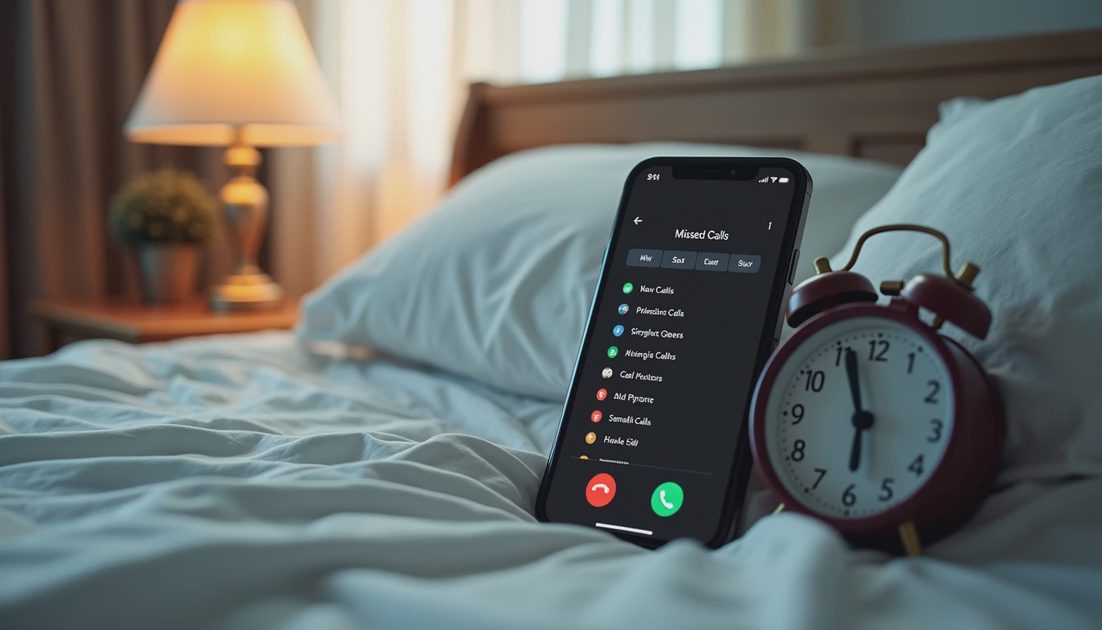
On iPhone, open the green Phone icon and tap Recents at the bottom. Missed calls show with a small red phone icon next to them. Tap the name once, then tap the green call button.
On Android, open the Phone icon and tap Recents at the top. Missed calls are marked with a red arrow or the word "Missed." Tap the entry, then the green phone icon.
What you should see: a list of every call you have made and received, newest at the top. A small number on the left tells you how many calls came in from that person. If your daughter's name appears three times in a row, call her back.
If you would rather not be available at certain hours (after 9 p.m.), most phones have Do Not Disturb. Turn it on manually or set it to repeat automatically, and the phone stays silent except for calls from your favorites list.
Setting Up Voicemail So People Can Reach You
A working voicemail box is one of those quiet smartphone basics for seniors people skip — until they miss an important call. With voicemail, callers can leave a message and you listen when it is convenient.
On iPhone, open the Phone icon, tap Voicemail in the bottom-right, then Set Up Now. The phone walks you through choosing a password, recording a greeting, and saving. Most greetings are as simple as "Hi, this is Marian, please leave a message and I will call you back." When you finish, tap Save.
On Android, open the Phone icon, tap the three dots in the upper-right, then Settings and Voicemail. Follow the prompts to record a greeting. Some Android phones use a separate visual voicemail app — the instructions will be there.
What you should see: when you tap Voicemail, a list of messages appears, newest first. Tap the play button to listen, the trash can to delete, and the phone icon to call back. To keep a message forever, tap share and send it to yourself in a text.
A Few Quiet Habits That Make Calls Easier
Three small habits have saved my parents more headaches than any fancy app — they are simple smartphone basics for seniors, the kind of thing you set once and forget.
First, set up your favorites list. On both phones, the Phone app has a Favorites tab. Add the four or five people you call most — your child, your doctor, your pharmacist, your neighbor — and you can reach any of them with two taps.
Second, let the phone read the caller's name out loud. On iPhone, open Settings, then Phone, then Call Announcements, and choose Always. On Android, open the Phone app, tap the three dots, then Settings, then Caller ID Announcement. The phone speaks the name before you pick up.
Third, keep the phone charged and the ringer turned up. Most missed calls in our house happen because the phone is face-down and the ringer is at one. Charge by the bed, leave the ringer at about three quarters, and you will hear it from the next room.
That is the whole list. Once you can answer, decline, return, and set up voicemail, you have the basic toolkit that every other phone skill builds on.