

When my mom brought home a new phone last spring, she sat at the kitchen table with the box unopened and her small notepad beside her — the same "things Mom may ask about" list I keep by my own laptop. Most new smartphone owners do not need to learn everything on day one. They need a short, calm list of smartphone basics for seniors that makes the device feel friendlier than it did in the box. This guide covers those first five skills, in order, at a pace you can pause between.
If you are reading this for an older parent, read it once yourself first, then sit beside them. I drove two hours up to my folks' place in central Minnesota for our first practice session over coffee and cinnamon banana bread. You are not going to break the phone by looking at this screen — that is the first thing I tell every learner.
Start With Power, Charging, and the Home Screen
The first job a phone has is to turn on, stay charged, and show you the apps. Before any of the fancier features, take ten quiet minutes here. These three small steps are the bedrock of smartphone basics for seniors — without them, none of the other four can really follow.
Turning the phone on and off. On most iPhones and Samsungs, hold the side button on the right edge for two or three seconds until a small logo appears — that is the phone waking up. To turn it off, hold the side button plus a volume button for a moment, then slide the "power off" slider near the top. What you should see: the screen goes dark with a small spinning wheel, then nothing. To turn it back on, hold the side button again. If the screen never lights up, the phone is probably out of battery, not broken.
Charging without worry. Plug the cable into the small hole at the bottom of the phone (called Lightning on older iPhones, USB-C on most newer ones). The other end goes into the wall brick from the box. A small charging indicator appears on the screen when it begins. Stop here if the screen does not look like this — a cable plugged in but no indicator usually means the brick is loose, not that the phone is damaged.
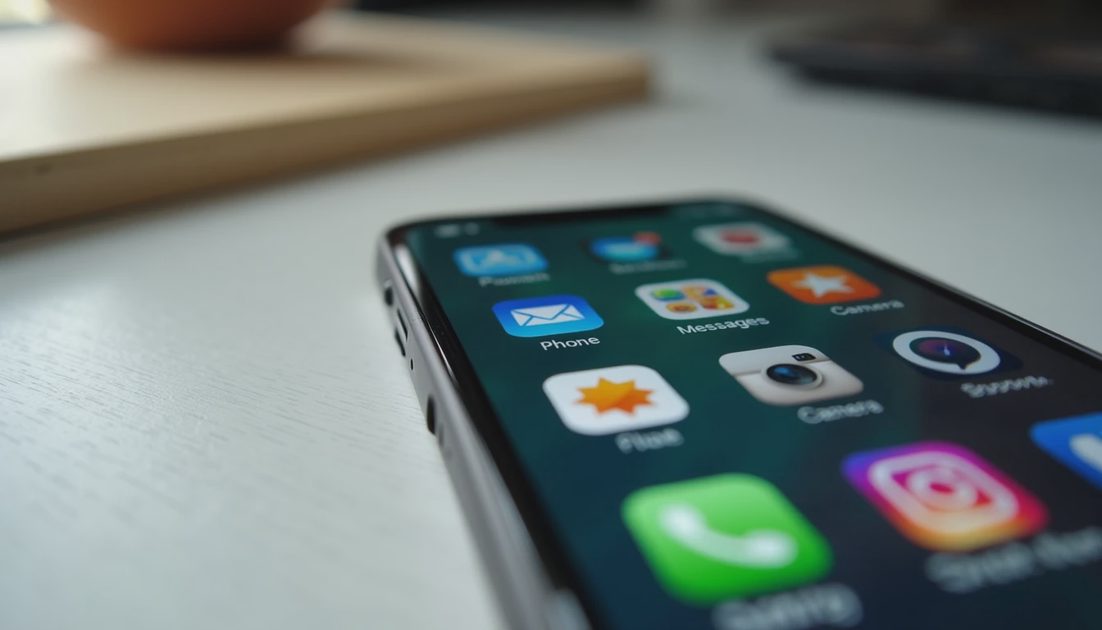
The home screen. This is the picture you see when you unlock the phone. Each small square is an "app" — a mini program for calling, texting, taking photos. Tap an icon once to open it. Press the round button at the bottom of the screen (or swipe up from the bottom edge on newer phones) to come back home. There is no wrong way to explore.
What you want to do | Where to find it on the home screen |
|---|---|
Make a phone call | The green "Phone" icon |
Send a text message | The green "Messages" icon |
Take a photo | The camera icon, often on the lock screen too |
Search the internet | The colorful "Safari" or "Chrome" icon |
Adjust settings | The gray gear-shaped "Settings" icon |
Let's make the next click the easy one.
Make the Screen Easier on Your Eyes
The single change that helps the most older eyes is also one of the simplest. Most phones let you make the text bigger and the screen brighter, and you can change it back at any time.
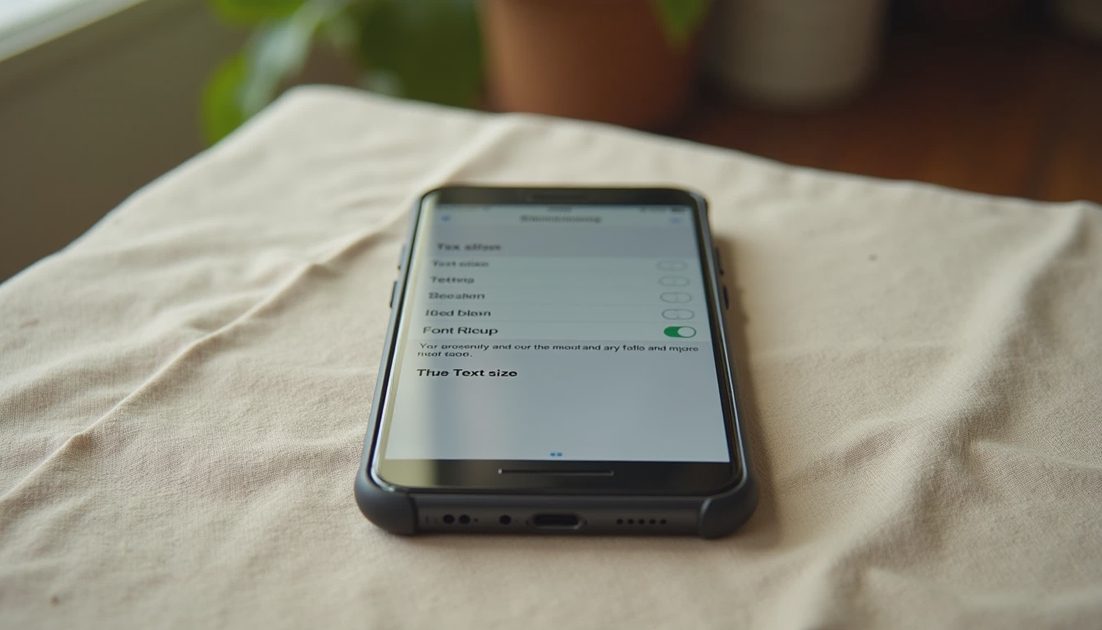
To make text bigger on an iPhone, open the gray gear icon called Settings, tap Display & Brightness, then Text Size, and drag the slider to the right. You will see the words on a sample menu grow larger in real time. For even larger letters, return to Settings, tap Accessibility, then Display & Text Size, and turn on Larger Text. On Android, open Settings, tap Display, then Font Size, and pick a level. Brightness sits right above it: a higher bar means a brighter screen.
What you should see: when you go back to your list of messages, the words look noticeably bigger and less crowded. If they did not change, you may have only opened the slider and not confirmed — tap Done or the back arrow at the top. Most iPhone users I work with prefer about one step above the middle. There is no wrong answer.
If someone is rushing you to change these settings, that is a reason to slow down. These are your eyes, and the only setting that matters is the one that feels right to you.
Making and Ending a Call
Once the screen is comfortable, making a phone call is the next thing worth practicing. I walked through this with my dad on a Sunday afternoon while the kids — Lila and Miles — played in the backyard. He wanted to call his brother, and by the third try he was smiling.
To make a call. Open the green Phone icon. You will see tabs across the bottom: Keypad to dial by hand, Recents to redial someone you have called before, or Contacts to pick a name from your address book. Tap the person's name, then tap the green call button. What you should see: a small timer counting up and the other person's name. If it rings four times and goes to voicemail, that is normal — leave a short message and hang up.
To end a call. Tap the red button on the screen. The call ends. There is no need to close anything else.
To answer an incoming call. When the phone rings and lights up, swipe the green phone icon to the right, or tap Accept. To send the call to voicemail without answering, swipe the red phone icon, or tap Decline.
If your finger slips and you hang up by mistake, do not worry. Open Recents and tap the same name to call back. Mistakes are how the phone learns you.
Asking for Help in a Way That Actually Works
The fifth skill is not on the phone — it is knowing how to ask for help. After eleven years on a patient-portal support line and another stretch running small workshops for older adults around Minneapolis, I can tell you that the people who stay safe online are the ones who know when to stop and ask.
A good help request has three pieces. What phone you have ("iPhone 12" is in tiny letters on the back of the case; "Samsung Galaxy A15" is on a sticker on the box). What you were trying to do ("I wanted to send a photo to my granddaughter"). What you saw instead ("a small box popped up and I tapped OK"). That is enough for any helper to begin — and it is one of the most practical smartphone basics for seniors I can teach.
If someone calls you claiming to be from Apple, Microsoft, your bank, or Medicare, slow down. Real companies do not call you out of the blue about a problem you did not report. Hang up, then call back using the number printed on your monthly statement. If someone is rushing you, that is a reason to slow down. You are not going to break the phone by looking at this screen.
A Short Note on What to Skip for Now
Save group FaceTime, contactless payments, smart-home apps, and voice assistants for next week. The goal is to feel like the phone is on your side.