
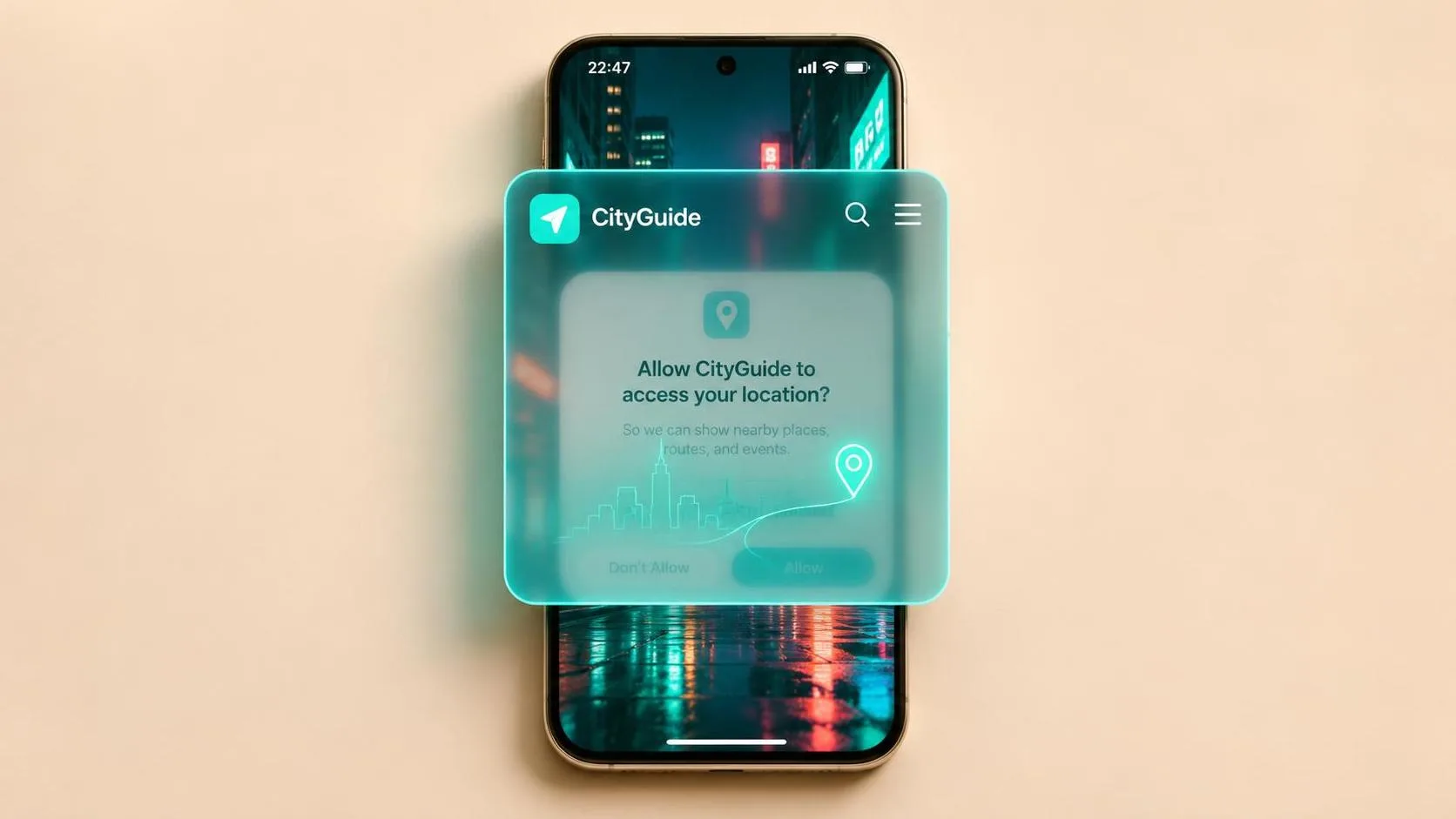
If your Android phone says because an app is obscuring a permission request, you have not done anything wrong. Android is stopping you from tapping a button that another app might be covering. This warning often appears when you install a new app and it asks for access to your camera, contacts, location, microphone, or files.
The message can sound alarming, but it is usually a safety feature. Android wants you to see the real permission screen clearly before you approve it. Let’s make the next click the easy one.
What the warning means
A permission request is a question from an app. It might ask, “Allow this app to use your camera?” An overlay is something displayed on top of another screen. Examples include a floating shortcut button, a screen filter that makes the display easier to read, a chat bubble, or an app that changes the color and brightness of your screen.
When Android detects that something is covering the permission box, it may block the Allow button. This helps prevent a deceptive app from placing a fake button over the real one. In plain English, the phone is saying, “I cannot be sure you can see what you are approving, so I will pause here.”
Because an app is obscuring a permission request does not necessarily mean the app causing the problem is malicious. It does mean you should identify the overlay before continuing. You are not going to break the phone by looking at this screen.
The safest first steps
Start by reading the warning carefully. Do not tap Allow repeatedly, and do not install another “fix” app suggested by a pop-up. Press the Home button or swipe up from the bottom of the screen, then look at your recently opened apps. Close anything that creates a floating window or changes the screen’s appearance.
Common examples include Facebook Messenger chat heads, screen-recording tools, blue-light filters, screen magnifiers, password managers with floating buttons, and accessibility utilities. Some Samsung phones also have Edge panels or floating menus that can sit above another app.
If you recognize the floating item, close it temporarily. You can often drag a chat bubble to the bottom of the screen, tap an X, or choose Exit in a screen-filter app. Return to the original permission screen and check whether the Allow button is now available.
If the warning still says because an app is obscuring a permission request, restart the phone. A restart closes temporary overlays without removing your photos, messages, or apps. After the phone comes back on, open only the app that needs permission and try again.
Find the app displayed over other apps
If you cannot identify the overlay, open Settings. The exact wording depends on the phone, but on many Android devices you can use the Settings search bar and type “display over other apps.” You may also find it under Apps, Special app access, or Advanced access.
This screen shows apps that are allowed to appear on top of other apps. Look for utilities you recently installed or apps with floating controls. If you are unsure about one, write down its name before changing anything. You can search for the app later using its official listing in the Google Play Store.
Tap an app’s name and switch off “Allow display over other apps” or a similar setting. This does not uninstall the app. It simply prevents that app from covering other screens. Go back and try the original permission request again.
Because an app is obscuring a permission request can sometimes appear after installing a legitimate app such as a grocery scanner, banking tool, video-calling service, or smart-home controller. The permission and overlay settings are separate. Turning off an overlay does not automatically grant camera, microphone, or location access.
Check accessibility and screen tools
Some overlays come from accessibility features rather than ordinary apps. Accessibility tools help people enlarge text, read a screen aloud, improve contrast, or control a phone with switches. These tools can be extremely useful, so do not disable one permanently just because Android displays a warning.
In Settings, search for “accessibility” and review installed services. You might see screen readers, magnification, voice controls, or an app that adds a floating accessibility button. Temporarily turn off only the service you recognize as creating the cover. If you use the service every day, ask a family member or the phone manufacturer’s support team for help before changing it.
Also check Display settings for screen filters, extra-dim modes, color adjustment apps, and magnification shortcuts. A small floating icon near the edge of the screen is an important clue. Stop here if the screen does not look like this or if you cannot tell what a setting does.

If the message appears during banking or health-app setup
Take extra care when the permission request involves a bank, Medicare portal, pharmacy, medical office, or payment service. A real app may need camera access to scan a check or identification document, but you should still confirm that you opened the official app from the Google Play Store or your phone manufacturer’s app store.
Never give a stranger remote control of your phone because they claim to fix this warning. Do not read a verification code aloud, and do not move money to a “safe account.” If someone is rushing you, that is a reason to slow down.
Close the suspicious message, call the organization using the phone number on its official website or your statement, and explain that Android is blocking a permission screen. Official support can tell you whether the app truly needs that access. A bank employee should not ask for your full password or request that you install an unrelated remote-control tool.
What to do when nothing works
If because an app is obscuring a permission request continues after a restart, review apps installed in the last few days. Remove an app only if you recognize it as unnecessary or suspicious, and save important information first. You can uninstall it by opening Settings, choosing Apps, selecting the app, and tapping Uninstall.
You can also install Android system updates from Settings, because updates sometimes improve permission handling. Avoid factory-resetting the phone as a first response. A factory reset erases personal data and should be considered only after backup and careful advice from the manufacturer.
For a clear support call, write down the phone brand, Android version if shown, the app requesting permission, and the exact warning. A screenshot can help, but do not include passwords, account numbers, or one-time codes. If you are helping a parent by phone, ask them to describe what they see before telling them which button to press.
Because an app is obscuring a permission request is frustrating, but it is also a useful pause. Close the overlay, confirm the app’s identity, and grant only the permission that makes sense for its purpose. Let’s make the next click the easy one.